

What the customer sees
1
Invoice email
When an invoice is issued, the customer’s contacts receive an email with the amount, due date, and a link to the hosted invoice. If AutoPay is on, the email says so and no action is needed. Delivery can be turned off for subscriptions created from a plan with the plan’s 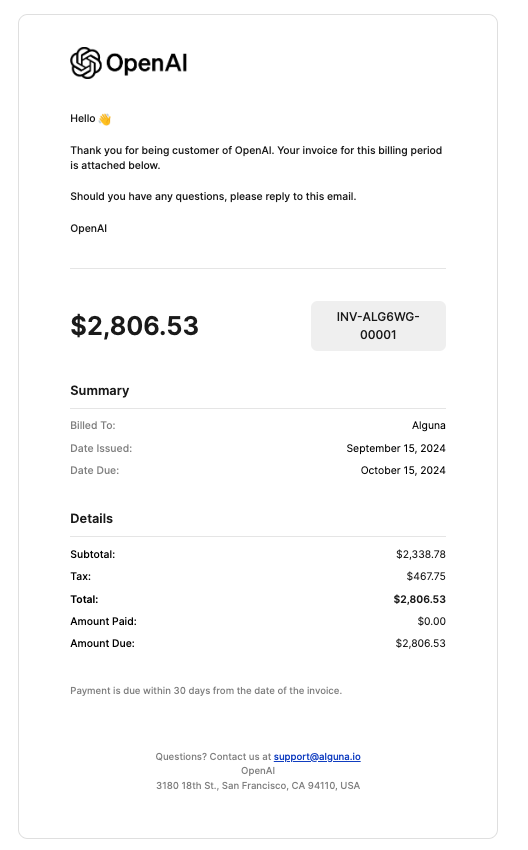
invoice_settings.send_invoices_to_customer.2
Hosted invoice page
Review Invoice opens the hosted page: itemised charges, tax breakdown, terms and due date, and the PDF.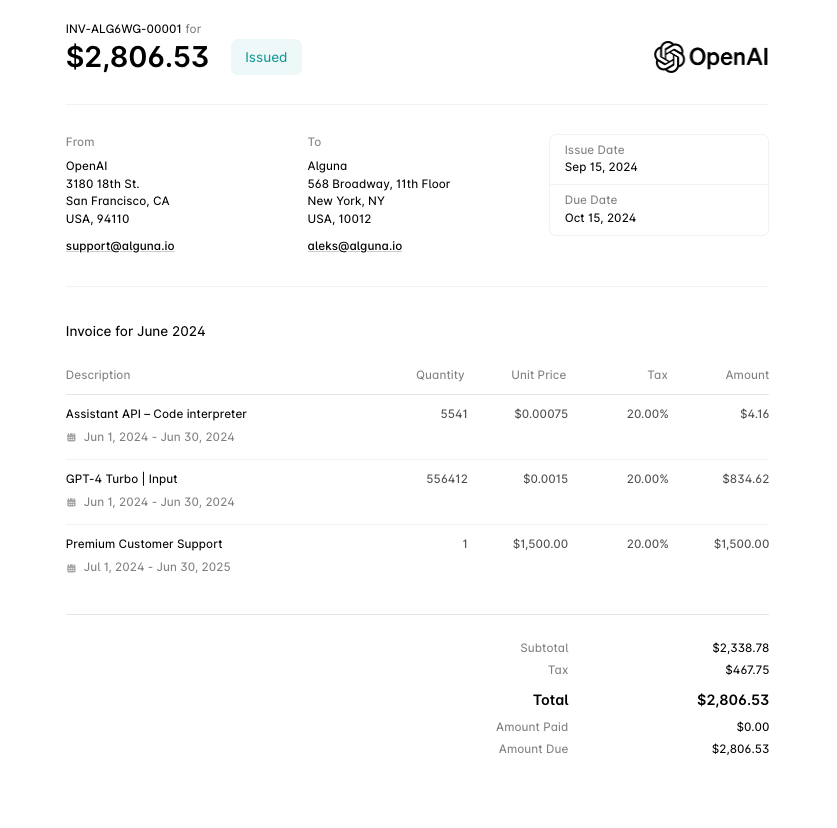
3
Payment
AutoPay customers are charged automatically. Everyone else pays from the hosted page with a method your processor supports, or offline by bank transfer.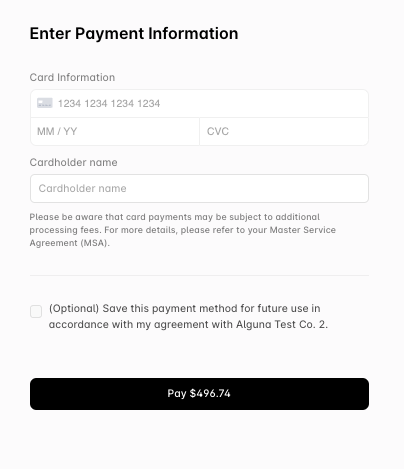
4
Receipt
On success the customer receives a receipt email and PDF. Turn this off with the plan’s 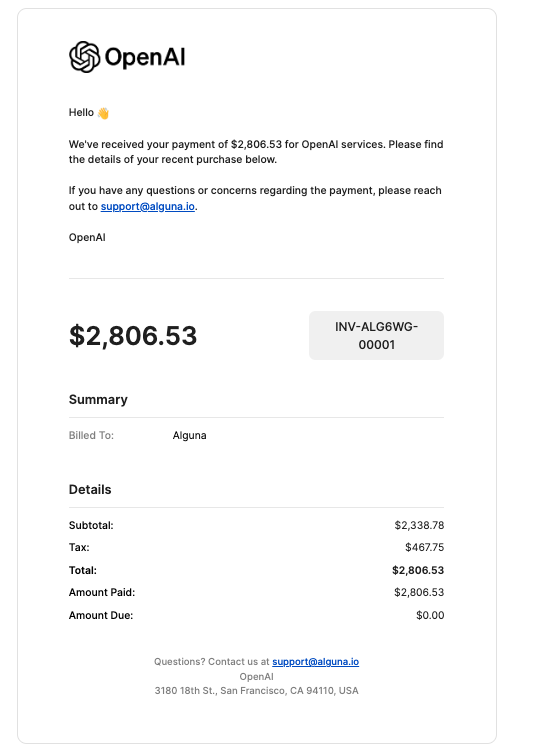
invoice_settings.send_receipts_to_customer.Who receives invoices
Invoices go to the customer’s contacts. Set them on the customer record;contacts replaces all existing contacts when provided.
PATCH /customers/{id} also accepts name, currency, aliases, and billing_address. See Update a customer and Customer Contacts.
AutoPay
AutoPay charges the customer’s default saved payment method automatically, instead of waiting for them to pay. By default the charge happens when the invoice is issued; Autopay Timing can move it to the due date. It is the subscription’sbilling.auto_pay_invoices flag, with a plan-level default in invoice_settings.auto_pay_invoices; the dashboard also exposes it on the customer’s billing settings.
Set it through the API on the subscription:
allow_autopay_edit.
AutoPay needs a saved payment method. GET /invoices?autopay=true lists the invoices that will be collected this way.
Charge timing
Autopay Timing decides when AutoPay charges an invoice:
The value is copied at creation and resolved when the invoice is issued:
- Organization: the default for new customers, under Settings → Workflows → Billing → Invoicing (see Invoicing Configuration).
- Customer:
autopay_timingon the customer (POST /customers,PATCH /customers/{id}). Always set; a new customer copies the organization value unless the request sets one. - Subscription:
billing.autopay_timingon the subscription. A subscription created from a plan copies the plan’s value. Sendbilling.clear_autopay_timing: trueto inherit the customer’s value again. - Invoice:
autopay_timingon the invoice (POST /invoices,PATCH /invoices/{id}). Sendclear_autopay_timing: truebefore issue to inherit the customer’s value at issue. Clearing it after issue makes the invoice eligible for the next AutoPay run, even if the customer useson_due_date. It can change while the invoice is draft, upcoming, pending approval, issued, or overdue.
- Before issue,
autopay_timingisnullwhen no invoice override is saved. A subscription copies its value to each new invoice; at issue, an invoice without a value uses the customer’s value. - When an invoice is issued, Alguna saves the resolved value on the invoice, and the invoice’s
autopay_timingreturns it. A later change on the customer, plan, or subscription does not move invoices that are already issued. A change on the invoice itself applies to the next AutoPay run. - The charge follows the due date. If you change the payment terms or the due date of an issued invoice, the charge moves with it.
- An invoice with no due date (
indefinitepayment terms) and an invoice due on issue are charged when they are issued. - Wallet credits apply when the invoice is issued, in both modes.
- Invoices issued before Autopay Timing existed have no value and are charged when they are issued.
on_due_date invoice waits for its charge, the customer sees it as scheduled:
- The hosted invoice page shows Automatic payment scheduled with the card and the charge date. If the card has expired, or expires before the charge date, the page says so.
- Pay now lets the customer pay before the charge date: Charge the card on file, or Use a different payment method in the checkout, where they can save the new method. After the customer pays, the automatic payment does not run.
- The customer portal shows the invoice as Scheduled with its charge date.
- The Invoices Due Reminders automation skips invoices that have an automatic payment scheduled.
Payment methods
A customer’s saved payment methods are held by your payment processor and referenced by Alguna. The kinds Alguna recognises are:Save a payment method without charging
Create a checkout session withcheckout_intent: "vault" and no plan_id, line_items, or amount. The customer enters their details on the hosted page (or embedded in your product); the method is vaulted against the customer and becomes available for AutoPay.
Customer portal
The hosted portal lets customers see their invoices, download PDFs, pay outstanding balances, and update billing details and payment methods. Mint a session and redirect the customer to itsurl. Sessions expire — check expires_at and create a fresh one rather than storing the URL.
customer_alias instead of customer_id to address the customer by your own ID. Each section — plan overview, invoice list, billing details — can be shown or hidden per session. See Customer Portal and Create a customer portal session.
Record an external payment
When a customer pays outside Alguna, mark the invoice paid so the balance, status, and revenue reporting stay right.external_payment_source is required; amount_paid defaults to the full total and paid_date to today. The invoice becomes paid when the balance reaches zero.
external_payment_source accepts bank_transfer, cheque, payment_card, cash, or other. See Mark an invoice as paid.
Reading payments
Payments are read-only in the public API. Each payment carriesamount, amount_received, amount_refunded, status, processor references (external_id, external_url), and allocations — the per-invoice split of the money, with reversed set when an invoice was reopened. Filter by customer_id or invoice_id.
status values are pending_client_action, pending_authorization, processing, completed, failed, and voided. See List payments and Get a payment. Money going the other way is a refund.
On the invoice itself, amount_paid and amount_remaining track collection against total, and GET /invoices filters on paid_date_gte / paid_date_lte.
Webhooks
Payloads are camelCase. See Webhooks for shapes and the webhooks quick start for a handler.
When payment fails or is late
- A failed charge emits a
payment_failedautomation trigger. The built-in Failed Payment Notification automation emails the customer a link to update their payment method; you can add retries and reminders. See Dunning. - An issued invoice past its due date becomes
overdueand the Overdue Invoice Reminder automation sends reminders. See Collections. - Reminders before the due date come from the Invoices Due Reminders automation, and one-off reminders from the
send_invoice_reminderaction. Invoices Due Reminders skips invoices that have an automatic payment scheduled. See Automations.
Next steps
Dunning
Recover failed payments automatically.
Refunds
Return money against a payment.
Wallets
Let customers prepay and settle invoices from a balance.
Customer Portal
Configure the self-service portal.