> ## Documentation Index
> Fetch the complete documentation index at: https://alguna.com/docs/llms.txt
> Use this file to discover all available pages before exploring further.
# Configure Products
> Create and manage your product catalog with flexible pricing
# Configure Products
Products are the building blocks of your pricing. Create products for your services, configure pricing models, and organize them into plans for your customers.
***
## Overview
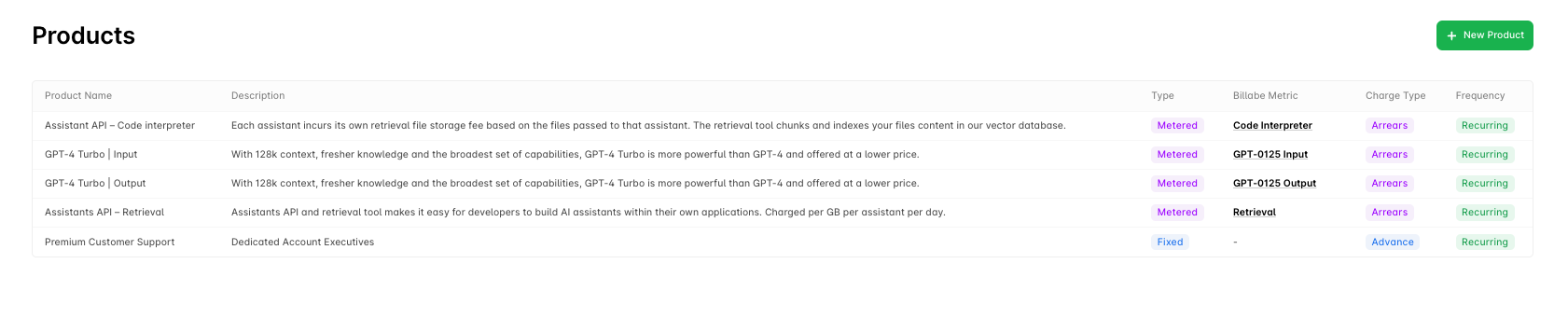
Alguna supports a wide variety of product types and payment terms:
| Dimension | Options |
| ----------------- | -------------------------------------------- |
| **Fee Type** | Fixed, Metered (usage-based) |
| **Charge Type** | Upfront, Arrears |
| **Frequency** | One-off, Recurring (monthly, annual, custom) |
| **Pricing Model** | Flat rate, Tiered, Volume, Package, Per-unit |
 ***
## Create a Product
1. Navigate to [Products](https://app.alguna.io/products)
2. Click **New Product**
3. Configure product details
4. Set pricing
5. Click **Save**
***
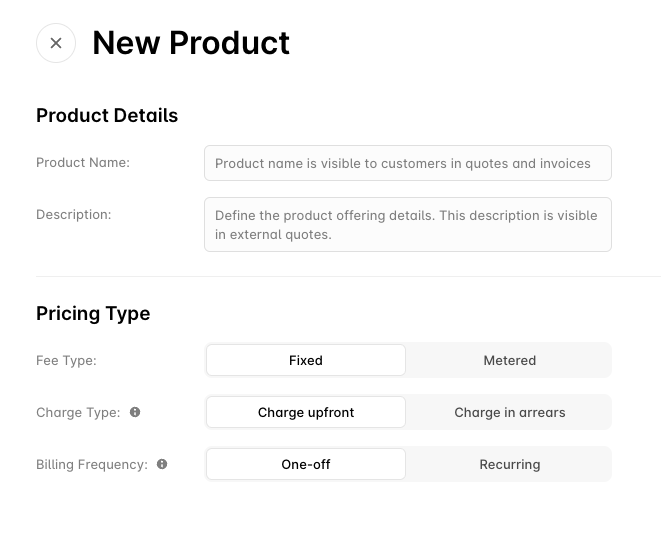
## Create a Product
1. Navigate to [Products](https://app.alguna.io/products)
2. Click **New Product**
3. Configure product details
4. Set pricing
5. Click **Save**
 ***
## Fee Types
### Fixed Fees
Consistent charges that remain the same across billing periods.
**Use cases:**
* Platform access fees
* Monthly subscriptions
* Seat licenses
### Metered Fees
Variable charges based on actual usage.
**Use cases:**
* API requests
* Data transfer
* Compute hours
* Storage
For metered products, you'll need to configure a billable metric to track usage. See [Define Metrics](/billable-metrics/define-metrics).
***
## Charge Type
### Upfront (In Advance)
Billed at the start of the billing period.
**Example:** Customer pays \$99 on January 1st for January access.
### Arrears (After Usage)
Billed at the end of the billing period.
**Example:** Customer pays for January usage on February 1st.
Metered products are always charged in arrears since charges are calculated based on actual usage during the billing period.
***
## Billing Frequency
### Recurring
Billed every billing period (monthly, quarterly, annual, or custom).
### One-Off
Billed once, never recurs. Use for setup fees, implementation services, or one-time charges.
### Custom Periods
Configure custom billing periods (e.g., every 6 months) when creating the product.
***
## Pricing Models
### Flat Rate
Single price regardless of quantity.
**Example:** \$99/month for platform access.
### Per Unit
Price per unit, multiplied by quantity.
**Example:** $10/seat × 25 seats = $250/month.
### Tiered (Graduated)
Different prices for different usage tiers. Each tier is charged at its own rate.
**Example:**
* Units 1-100: \$1.00 each
* Units 101-500: \$0.80 each
* Units 501+: \$0.50 each
For 250 units: (100 × $1.00) + (150 × $0.80) = \$220
### Volume
Single price based on total volume. All units are charged at the same rate based on which tier the total falls into.
**Example:**
* Up to 100 units: \$1.00 each
* 101-500 units: \$0.80 each
* 501+ units: \$0.50 each
For 250 units: 250 × $0.80 = $200 (all at tier 2 price)
### Package
Price per package of units.
**Example:** $50 per 1,000 API calls. 2,500 calls = 3 packages × $50 = \$150
### Staircase
Fixed price for ranges regardless of exact quantity.
**Example:**
* 1-5 seats: \$29/month
* 6-20 seats: \$99/month
* 21+ seats: \$199/month
***
## Product Details
When creating a product, configure:
| Field | Description |
| ---------------- | ---------------------------------------------------------- |
| **Name** | Display name shown on invoices |
| **Description** | Detailed description for quotes |
| **SKU** | Internal product code (optional) |
| **Tax Category** | For tax calculation (SaaS, services, physical goods, etc.) |
***
## Multi-Currency Pricing
Set prices in multiple currencies for international customers:
1. In the product pricing section, click **Add Currency**
2. Select the currency
3. Enter the price for that currency
4. Repeat for additional currencies
Alguna will automatically use the appropriate price based on the customer's currency.
***
## Common Product Patterns
### SaaS Platform
| Product | Fee Type | Pricing |
| --------------- | ---------------- | --------- |
| Platform Access | Fixed, Recurring | Flat rate |
| User Seats | Fixed, Recurring | Per unit |
| API Overage | Metered | Tiered |
### Infrastructure/Cloud
| Product | Fee Type | Pricing |
| ------------- | -------- | -------- |
| Compute Hours | Metered | Tiered |
| Storage (GB) | Metered | Per unit |
| Data Transfer | Metered | Volume |
### Professional Services
| Product | Fee Type | Pricing |
| ---------------- | ---------------- | --------- |
| Implementation | Fixed, One-off | Flat rate |
| Consulting Hours | Fixed, One-off | Per unit |
| Support Package | Fixed, Recurring | Flat rate |
***
## Managing Products
### Edit a Product
1. Navigate to **Products**
2. Click on the product
3. Make changes
4. Click **Save**
Changes to pricing affect new subscriptions only. Existing subscriptions keep their current pricing unless amended.
### Archive a Product
1. Navigate to **Products**
2. Click on the product
3. Click **Archive**
Archived products are no longer available for new subscriptions but existing subscriptions are unaffected.
***
## Linking Products to Metrics
For metered products, link to a billable metric:
1. Create the product with **Metered** fee type
2. In the **Metric** field, select an existing metric or create a new one
3. Configure pricing based on the metric
See [Define Metrics](/billable-metrics/define-metrics) for details on creating metrics.
***
## Best Practices
Use descriptive names that appear well on invoices.
Use structured SKU codes for easy identification.
Test pricing models in sandbox before production.
Create new products for significant price changes to preserve history.
***
## Troubleshooting
### Product Not Appearing
1. Check product status is **Active**
2. Verify product is assigned to relevant plan
3. Confirm no filters are hiding it
### Pricing Not Calculating
1. Review pricing model configuration
2. Check tier boundaries for gaps
3. Verify currency matches customer
### Metered Product Shows No Usage
1. Confirm metric code matches
2. Verify usage events are being sent
3. Check event timestamps are in billing period
***
## Next Steps
Deep dive into pricing models.
Organize products into plans.
***
## Fee Types
### Fixed Fees
Consistent charges that remain the same across billing periods.
**Use cases:**
* Platform access fees
* Monthly subscriptions
* Seat licenses
### Metered Fees
Variable charges based on actual usage.
**Use cases:**
* API requests
* Data transfer
* Compute hours
* Storage
For metered products, you'll need to configure a billable metric to track usage. See [Define Metrics](/billable-metrics/define-metrics).
***
## Charge Type
### Upfront (In Advance)
Billed at the start of the billing period.
**Example:** Customer pays \$99 on January 1st for January access.
### Arrears (After Usage)
Billed at the end of the billing period.
**Example:** Customer pays for January usage on February 1st.
Metered products are always charged in arrears since charges are calculated based on actual usage during the billing period.
***
## Billing Frequency
### Recurring
Billed every billing period (monthly, quarterly, annual, or custom).
### One-Off
Billed once, never recurs. Use for setup fees, implementation services, or one-time charges.
### Custom Periods
Configure custom billing periods (e.g., every 6 months) when creating the product.
***
## Pricing Models
### Flat Rate
Single price regardless of quantity.
**Example:** \$99/month for platform access.
### Per Unit
Price per unit, multiplied by quantity.
**Example:** $10/seat × 25 seats = $250/month.
### Tiered (Graduated)
Different prices for different usage tiers. Each tier is charged at its own rate.
**Example:**
* Units 1-100: \$1.00 each
* Units 101-500: \$0.80 each
* Units 501+: \$0.50 each
For 250 units: (100 × $1.00) + (150 × $0.80) = \$220
### Volume
Single price based on total volume. All units are charged at the same rate based on which tier the total falls into.
**Example:**
* Up to 100 units: \$1.00 each
* 101-500 units: \$0.80 each
* 501+ units: \$0.50 each
For 250 units: 250 × $0.80 = $200 (all at tier 2 price)
### Package
Price per package of units.
**Example:** $50 per 1,000 API calls. 2,500 calls = 3 packages × $50 = \$150
### Staircase
Fixed price for ranges regardless of exact quantity.
**Example:**
* 1-5 seats: \$29/month
* 6-20 seats: \$99/month
* 21+ seats: \$199/month
***
## Product Details
When creating a product, configure:
| Field | Description |
| ---------------- | ---------------------------------------------------------- |
| **Name** | Display name shown on invoices |
| **Description** | Detailed description for quotes |
| **SKU** | Internal product code (optional) |
| **Tax Category** | For tax calculation (SaaS, services, physical goods, etc.) |
***
## Multi-Currency Pricing
Set prices in multiple currencies for international customers:
1. In the product pricing section, click **Add Currency**
2. Select the currency
3. Enter the price for that currency
4. Repeat for additional currencies
Alguna will automatically use the appropriate price based on the customer's currency.
***
## Common Product Patterns
### SaaS Platform
| Product | Fee Type | Pricing |
| --------------- | ---------------- | --------- |
| Platform Access | Fixed, Recurring | Flat rate |
| User Seats | Fixed, Recurring | Per unit |
| API Overage | Metered | Tiered |
### Infrastructure/Cloud
| Product | Fee Type | Pricing |
| ------------- | -------- | -------- |
| Compute Hours | Metered | Tiered |
| Storage (GB) | Metered | Per unit |
| Data Transfer | Metered | Volume |
### Professional Services
| Product | Fee Type | Pricing |
| ---------------- | ---------------- | --------- |
| Implementation | Fixed, One-off | Flat rate |
| Consulting Hours | Fixed, One-off | Per unit |
| Support Package | Fixed, Recurring | Flat rate |
***
## Managing Products
### Edit a Product
1. Navigate to **Products**
2. Click on the product
3. Make changes
4. Click **Save**
Changes to pricing affect new subscriptions only. Existing subscriptions keep their current pricing unless amended.
### Archive a Product
1. Navigate to **Products**
2. Click on the product
3. Click **Archive**
Archived products are no longer available for new subscriptions but existing subscriptions are unaffected.
***
## Linking Products to Metrics
For metered products, link to a billable metric:
1. Create the product with **Metered** fee type
2. In the **Metric** field, select an existing metric or create a new one
3. Configure pricing based on the metric
See [Define Metrics](/billable-metrics/define-metrics) for details on creating metrics.
***
## Best Practices
Use descriptive names that appear well on invoices.
Use structured SKU codes for easy identification.
Test pricing models in sandbox before production.
Create new products for significant price changes to preserve history.
***
## Troubleshooting
### Product Not Appearing
1. Check product status is **Active**
2. Verify product is assigned to relevant plan
3. Confirm no filters are hiding it
### Pricing Not Calculating
1. Review pricing model configuration
2. Check tier boundaries for gaps
3. Verify currency matches customer
### Metered Product Shows No Usage
1. Confirm metric code matches
2. Verify usage events are being sent
3. Check event timestamps are in billing period
***
## Next Steps
Deep dive into pricing models.
Organize products into plans.