> ## Documentation Index
> Fetch the complete documentation index at: https://alguna.com/docs/llms.txt
> Use this file to discover all available pages before exploring further.
# Invoicing Customers
> Configure invoice delivery, payment collection, and customer communication
# Invoicing Customers
Alguna automates the complete invoice lifecycle: generation, delivery, payment collection, and receipts. Configure how customers receive and pay invoices, set up automatic payment collection, and manage dunning for failed payments.
***
## Invoice Delivery
Once an invoice is approved, it is automatically sent to the customer via email.
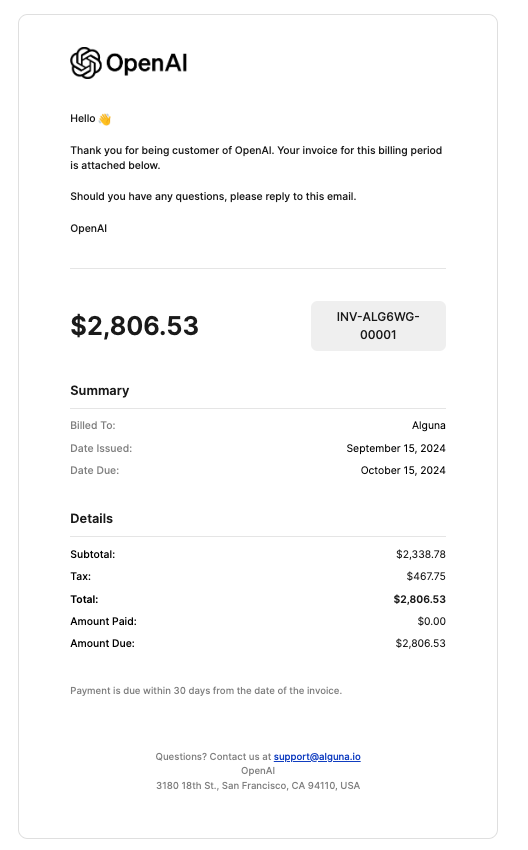
### 1. Invoice Received via Email
The customer receives an email notification with a subject line indicating their invoice is ready. The email contains a link or attachment to the invoice for review.
* View invoice details including total amount, due date, and line item summary
* If **AutoPay** is enabled, no action required - payment processes automatically
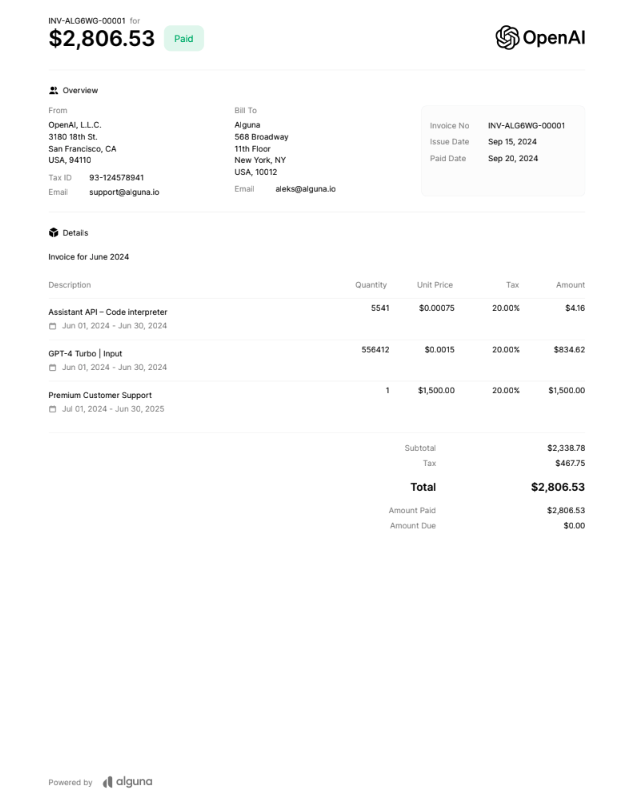
 ### 2. Open & Review Invoice
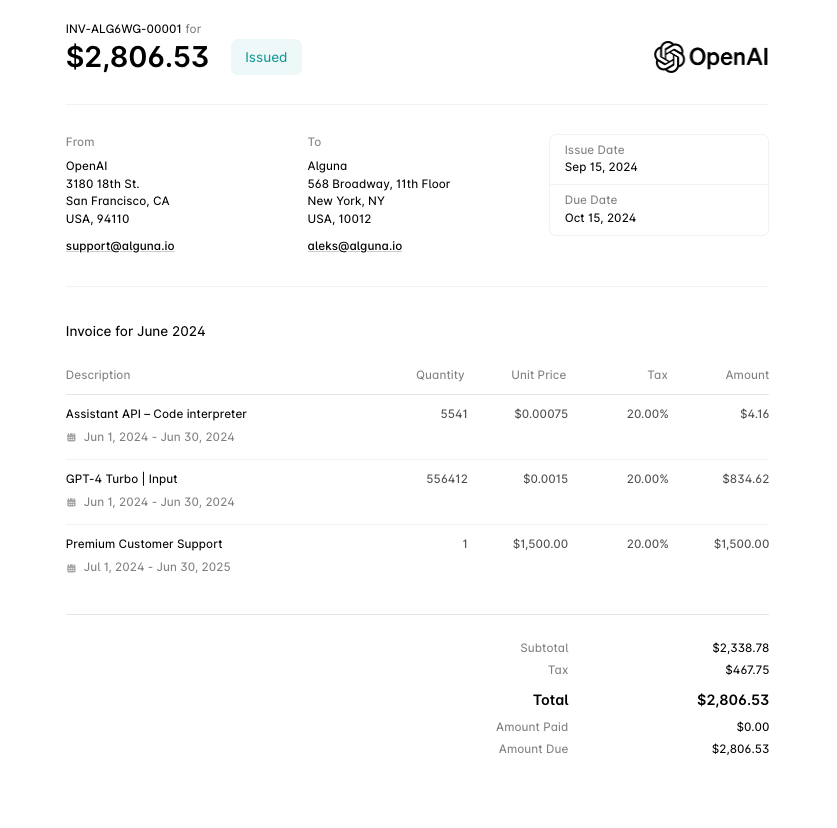
Customers click **Review Invoice** to view full details on a hosted page:
* Total amount due with itemized charges
* Tax breakdown
* Payment terms and due date
* Description of each billed item
### 2. Open & Review Invoice
Customers click **Review Invoice** to view full details on a hosted page:
* Total amount due with itemized charges
* Tax breakdown
* Payment terms and due date
* Description of each billed item
 ### 3. Payment Process
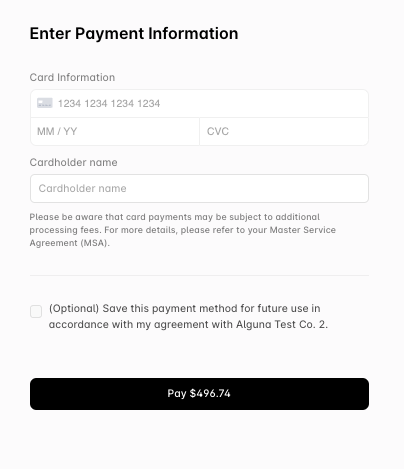
Once reviewed, customers can pay:
* **AutoPay Customers**: Payment processes automatically on or before due date
* **Manual Payment**: Pay via credit card, ACH, wire transfer, or other enabled methods
### 3. Payment Process
Once reviewed, customers can pay:
* **AutoPay Customers**: Payment processes automatically on or before due date
* **Manual Payment**: Pay via credit card, ACH, wire transfer, or other enabled methods
 ### 4. Payment Confirmation
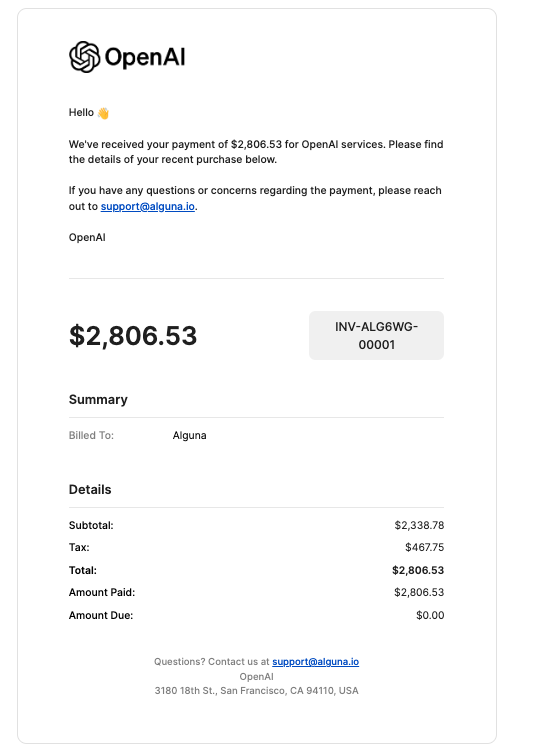
Upon successful payment, customers receive a receipt with:
**Payment confirmation email:**
### 4. Payment Confirmation
Upon successful payment, customers receive a receipt with:
**Payment confirmation email:**
 **Receipt PDF:**
 ***
## Configure Invoice Settings
### Organization-Level Settings
```javascript theme={null}
await alguna.organization.updateInvoiceSettings({
// Numbering
invoicePrefix: 'INV-',
invoiceNumberFormat: 'YYYY-NNNNN', // INV-2024-00001
// Delivery
defaultDeliveryMethod: 'email',
attachPdf: true,
ccFinanceTeam: true,
ccEmails: ['accounting@yourcompany.com'],
// Payment terms
defaultPaymentTerms: 'net_30',
lateFeePercentage: 1.5, // 1.5% monthly
// Branding
logoUrl: 'https://example.com/logo.png',
accentColor: '#00BA61',
footerText: 'Thank you for your business!',
});
```
### Customer-Level Overrides
```javascript theme={null}
await alguna.accounts.update('acc_xyz789', {
invoiceSettings: {
paymentTerms: 'net_45', // Custom terms for this customer
deliveryMethod: 'email',
recipients: ['billing@customer.com', 'finance@customer.com'],
language: 'de', // German invoices
currency: 'EUR',
},
});
```
***
## AutoPay Configuration
### Via Dashboard
1. Navigate to **Customers → \[Customer Name]**
2. Click **Billing Settings** tab
3. Toggle **AutoPay** to enabled
4. Select the default payment method from saved methods
5. Choose when to charge:
* **On issue**: Charge immediately when invoice is issued
* **On due date**: Charge on the invoice due date
* **Days before due**: Charge N days before due date
6. Click **Save**
**Per Subscription:**
1. Navigate to **Subscriptions → \[Subscription]**
2. Click **Settings** or **Billing Settings**
3. Override the customer-level AutoPay settings if needed
### Via API
```javascript theme={null}
await alguna.accounts.update('acc_xyz789', {
autoPayEnabled: true,
defaultPaymentMethodId: 'pm_card_visa4242',
});
```
### AutoPay Behavior
| Setting | Description |
| ----------------- | ----------------------------------------- |
| `on_issue` | Charge immediately when invoice is issued |
| `on_due_date` | Charge on the due date |
| `days_before_due` | Charge N days before due date |
```javascript theme={null}
await alguna.accounts.update('acc_xyz789', {
autoPayEnabled: true,
autoPayTiming: 'days_before_due',
autoPayDaysBefore: 3, // Charge 3 days before due
});
```
### Organization Default
```javascript theme={null}
await alguna.organization.updateSettings({
defaultAutoPayTiming: 'on_due_date',
});
```
***
## Payment Methods
### Supported Methods
| Method | Auto-Collect | Manual Pay |
| --------------------- | ------------ | ---------- |
| **Credit/Debit Card** | Yes | Yes |
| **ACH (US Bank)** | Yes | Yes |
| **SEPA (EU Bank)** | Yes | Yes |
| **Wire Transfer** | No | Yes |
| **Check** | No | Yes |
### Configure Accepted Methods
```javascript theme={null}
await alguna.organization.updatePaymentSettings({
acceptedMethods: ['card', 'ach', 'sepa', 'wire'],
displayWireInstructions: true,
wireInstructions: {
bankName: 'First National Bank',
accountNumber: '****1234',
routingNumber: '021000021',
reference: 'Invoice {{invoice_number}}',
},
});
```
### Save Payment Method
```javascript theme={null}
// Via hosted checkout
const session = await alguna.checkoutSessions.create({
accountId: 'acc_xyz789',
mode: 'setup', // Just save payment method
successUrl: 'https://yourapp.com/success',
cancelUrl: 'https://yourapp.com/cancel',
});
// Customer completes flow, payment method saved automatically
```
***
## Dunning & Collections
Configure automated collection workflows for failed payments.
### Via Dashboard
1. Navigate to **Settings → Dunning**
2. Click **Create Dunning Schedule** (or edit existing)
3. Configure retry attempts:
| Day | Action | Template |
| --- | --------------------------- | --------------- |
| 0 | Retry payment | - |
| 3 | Send reminder email + Retry | Gentle reminder |
| 7 | Send reminder email + Retry | Firm reminder |
| 14 | Send final notice | Final warning |
| 30 | Mark uncollectible | - |
4. Set **Actions on persistent failure:**
* Pause subscription
* Cancel subscription
* Mark as collections
5. Click **Save Schedule**
### Via API
```javascript theme={null}
await alguna.organization.updateDunningSettings({
enabled: true,
schedule: [
{ daysPastDue: 0, action: 'retry_payment' },
{ daysPastDue: 3, action: 'email_reminder', template: 'gentle' },
{ daysPastDue: 3, action: 'retry_payment' },
{ daysPastDue: 7, action: 'email_reminder', template: 'firm' },
{ daysPastDue: 7, action: 'retry_payment' },
{ daysPastDue: 14, action: 'email_reminder', template: 'final' },
{ daysPastDue: 30, action: 'mark_uncollectible' },
],
});
```
### Dunning Actions
| Action | Description |
| --------------------- | -------------------------------- |
| `retry_payment` | Attempt to charge payment method |
| `email_reminder` | Send reminder email |
| `sms_reminder` | Send SMS reminder |
| `pause_subscription` | Pause access to service |
| `cancel_subscription` | Cancel the subscription |
| `mark_uncollectible` | Write off as uncollectible |
### Custom Email Templates
```javascript theme={null}
await alguna.emailTemplates.update('dunning_gentle', {
subject: 'Action needed: Payment for Invoice {{invoice_number}}',
body: `
Hi {{customer_name}},
We were unable to process payment for invoice {{invoice_number}}.
Amount due: {{amount_due}}
Due date: {{due_date}}
Please update your payment method: {{update_payment_link}}
Thanks,
The {{company_name}} Team
`,
});
```
***
## Invoice Reminders
### Via Dashboard
1. Navigate to **Settings → Invoicing → Reminders**
2. Configure **Before Due Date** reminders:
* Toggle on/off
* Set days before due (e.g., 7, 3, 1 days)
* Select email template
3. Configure **After Due Date** reminders:
* Toggle on/off
* Set days after due (e.g., 1, 7, 14 days)
* Select escalating templates (gentle → firm → final)
4. Click **Save Settings**
### Via API
#### Before Due Date
```javascript theme={null}
await alguna.organization.updateReminderSettings({
beforeDue: {
enabled: true,
daysBefore: [7, 3, 1], // Send 7, 3, and 1 day before
template: 'upcoming_due',
},
});
```
### After Due Date
```javascript theme={null}
await alguna.organization.updateReminderSettings({
afterDue: {
enabled: true,
daysAfter: [1, 7, 14], // Send 1, 7, and 14 days after
templates: {
1: 'past_due_gentle',
7: 'past_due_firm',
14: 'past_due_final',
},
},
});
```
### Manual Reminder
```javascript theme={null}
await alguna.invoices.sendReminder('inv_abc123', {
template: 'custom_reminder',
message: 'Please prioritize this payment.',
cc: ['sales@yourcompany.com'],
});
```
***
## Invoice Portal
Customers can view all their invoices in a self-service portal.
### Generate Portal Link
```javascript theme={null}
const portal = await alguna.accounts.createPortalSession('acc_xyz789', {
returnUrl: 'https://yourapp.com/billing',
flow: 'invoices', // Go directly to invoices
});
console.log('Portal URL:', portal.url);
// Redirect customer to portal.url
```
### Portal Capabilities
* View all invoices (paid, unpaid, draft)
* Download invoice PDFs
* Pay outstanding invoices
* Update payment methods
* View payment history
***
## Invoice API
### List Customer Invoices
```javascript theme={null}
const invoices = await alguna.invoices.list({
accountId: 'acc_xyz789',
status: ['issued', 'paid'],
limit: 20,
});
invoices.data.forEach(inv => {
console.log(`${inv.invoiceNumber}: ${inv.status} - $${inv.total}`);
});
```
### Get Invoice Details
```javascript theme={null}
const invoice = await alguna.invoices.get('inv_abc123');
console.log('Invoice:', invoice.invoiceNumber);
console.log('Status:', invoice.status);
console.log('Total:', invoice.total);
console.log('Line items:', invoice.lineItems);
console.log('Payments:', invoice.payments);
```
### Download PDF
```javascript theme={null}
const pdf = await alguna.invoices.getPdf('inv_abc123');
console.log('Download URL:', pdf.url);
```
### Record Manual Payment
```javascript theme={null}
await alguna.invoices.recordPayment('inv_abc123', {
amount: '1500.00',
paymentDate: '2024-01-20',
method: 'wire_transfer',
reference: 'Wire ref: 12345',
notes: 'Payment received via wire',
});
```
***
## Webhooks
| Event | Description |
| ------------------------ | ----------------------------------- |
| `invoice.issued` | Invoice issued and sent to customer |
| `invoice.viewed` | Customer viewed invoice |
| `invoice.paid` | Invoice fully paid |
| `invoice.payment_failed` | Payment attempt failed |
| `invoice.past_due` | Invoice became past due |
| `invoice.reminder_sent` | Reminder email sent |
### Example Handler
```javascript theme={null}
app.post('/webhooks/alguna', (req, res) => {
const event = req.body;
switch (event.type) {
case 'invoice.issued':
console.log(`Invoice ${event.data.invoiceNumber} sent to customer`);
break;
case 'invoice.viewed':
console.log(`Customer viewed invoice ${event.data.invoiceNumber}`);
// Good signal for follow-up timing
break;
case 'invoice.paid':
const { invoiceNumber, total, paidAt } = event.data;
console.log(`Invoice ${invoiceNumber} paid: $${total}`);
// Trigger fulfillment, update CRM, etc.
break;
case 'invoice.payment_failed':
const { invoiceNumber: failedInv, failureReason } = event.data;
console.log(`Payment failed for ${failedInv}: ${failureReason}`);
// Alert sales team, update customer status
break;
case 'invoice.past_due':
console.log(`Invoice ${event.data.invoiceNumber} is now past due`);
// Escalate to collections, pause service, etc.
break;
}
res.sendStatus(200);
});
```
***
## Email Templates
### Available Templates
| Template | Purpose |
| ------------------------- | --------------------------- |
| `invoice_issued` | New invoice notification |
| `invoice_reminder` | Payment reminder |
| `payment_receipt` | Payment confirmation |
| `payment_failed` | Failed payment notification |
| `payment_method_expiring` | Card expiration warning |
### Customize Templates
```javascript theme={null}
await alguna.emailTemplates.update('invoice_issued', {
subject: 'Invoice {{invoice_number}} from {{company_name}}',
fromName: '{{company_name}} Billing',
replyTo: 'billing@yourcompany.com',
body: `...`, // HTML template
});
```
### Template Variables
| Variable | Description |
| -------------------- | -------------------- |
| `{{customer_name}}` | Customer's name |
| `{{invoice_number}}` | Invoice number |
| `{{amount_due}}` | Amount due |
| `{{due_date}}` | Due date |
| `{{invoice_url}}` | Link to view invoice |
| `{{pay_now_url}}` | Direct payment link |
| `{{company_name}}` | Your company name |
***
## Best Practices
Encourage customers to set up autopay for reliable collections.
Configure reminders before and after due dates.
Send invoices to billing and finance contacts.
Clearly communicate payment terms in invoice memo.
***
## Troubleshooting
### Customer Not Receiving Invoices
1. Verify customer email address
2. Check spam/junk folders
3. Review delivery logs in dashboard
4. Confirm email domain isn't blocked
### AutoPay Not Working
1. Verify payment method is valid and not expired
2. Check customer has AutoPay enabled
3. Confirm payment method is set as default
4. Review payment gateway errors
### Invoice Shows Wrong Amount
1. Check line items and quantities
2. Verify tax calculation settings
3. Review discount applications
4. Check currency conversion if applicable
***
## Next Steps
Create standalone invoices.
Issue credits and refunds.
***
## Configure Invoice Settings
### Organization-Level Settings
```javascript theme={null}
await alguna.organization.updateInvoiceSettings({
// Numbering
invoicePrefix: 'INV-',
invoiceNumberFormat: 'YYYY-NNNNN', // INV-2024-00001
// Delivery
defaultDeliveryMethod: 'email',
attachPdf: true,
ccFinanceTeam: true,
ccEmails: ['accounting@yourcompany.com'],
// Payment terms
defaultPaymentTerms: 'net_30',
lateFeePercentage: 1.5, // 1.5% monthly
// Branding
logoUrl: 'https://example.com/logo.png',
accentColor: '#00BA61',
footerText: 'Thank you for your business!',
});
```
### Customer-Level Overrides
```javascript theme={null}
await alguna.accounts.update('acc_xyz789', {
invoiceSettings: {
paymentTerms: 'net_45', // Custom terms for this customer
deliveryMethod: 'email',
recipients: ['billing@customer.com', 'finance@customer.com'],
language: 'de', // German invoices
currency: 'EUR',
},
});
```
***
## AutoPay Configuration
### Via Dashboard
1. Navigate to **Customers → \[Customer Name]**
2. Click **Billing Settings** tab
3. Toggle **AutoPay** to enabled
4. Select the default payment method from saved methods
5. Choose when to charge:
* **On issue**: Charge immediately when invoice is issued
* **On due date**: Charge on the invoice due date
* **Days before due**: Charge N days before due date
6. Click **Save**
**Per Subscription:**
1. Navigate to **Subscriptions → \[Subscription]**
2. Click **Settings** or **Billing Settings**
3. Override the customer-level AutoPay settings if needed
### Via API
```javascript theme={null}
await alguna.accounts.update('acc_xyz789', {
autoPayEnabled: true,
defaultPaymentMethodId: 'pm_card_visa4242',
});
```
### AutoPay Behavior
| Setting | Description |
| ----------------- | ----------------------------------------- |
| `on_issue` | Charge immediately when invoice is issued |
| `on_due_date` | Charge on the due date |
| `days_before_due` | Charge N days before due date |
```javascript theme={null}
await alguna.accounts.update('acc_xyz789', {
autoPayEnabled: true,
autoPayTiming: 'days_before_due',
autoPayDaysBefore: 3, // Charge 3 days before due
});
```
### Organization Default
```javascript theme={null}
await alguna.organization.updateSettings({
defaultAutoPayTiming: 'on_due_date',
});
```
***
## Payment Methods
### Supported Methods
| Method | Auto-Collect | Manual Pay |
| --------------------- | ------------ | ---------- |
| **Credit/Debit Card** | Yes | Yes |
| **ACH (US Bank)** | Yes | Yes |
| **SEPA (EU Bank)** | Yes | Yes |
| **Wire Transfer** | No | Yes |
| **Check** | No | Yes |
### Configure Accepted Methods
```javascript theme={null}
await alguna.organization.updatePaymentSettings({
acceptedMethods: ['card', 'ach', 'sepa', 'wire'],
displayWireInstructions: true,
wireInstructions: {
bankName: 'First National Bank',
accountNumber: '****1234',
routingNumber: '021000021',
reference: 'Invoice {{invoice_number}}',
},
});
```
### Save Payment Method
```javascript theme={null}
// Via hosted checkout
const session = await alguna.checkoutSessions.create({
accountId: 'acc_xyz789',
mode: 'setup', // Just save payment method
successUrl: 'https://yourapp.com/success',
cancelUrl: 'https://yourapp.com/cancel',
});
// Customer completes flow, payment method saved automatically
```
***
## Dunning & Collections
Configure automated collection workflows for failed payments.
### Via Dashboard
1. Navigate to **Settings → Dunning**
2. Click **Create Dunning Schedule** (or edit existing)
3. Configure retry attempts:
| Day | Action | Template |
| --- | --------------------------- | --------------- |
| 0 | Retry payment | - |
| 3 | Send reminder email + Retry | Gentle reminder |
| 7 | Send reminder email + Retry | Firm reminder |
| 14 | Send final notice | Final warning |
| 30 | Mark uncollectible | - |
4. Set **Actions on persistent failure:**
* Pause subscription
* Cancel subscription
* Mark as collections
5. Click **Save Schedule**
### Via API
```javascript theme={null}
await alguna.organization.updateDunningSettings({
enabled: true,
schedule: [
{ daysPastDue: 0, action: 'retry_payment' },
{ daysPastDue: 3, action: 'email_reminder', template: 'gentle' },
{ daysPastDue: 3, action: 'retry_payment' },
{ daysPastDue: 7, action: 'email_reminder', template: 'firm' },
{ daysPastDue: 7, action: 'retry_payment' },
{ daysPastDue: 14, action: 'email_reminder', template: 'final' },
{ daysPastDue: 30, action: 'mark_uncollectible' },
],
});
```
### Dunning Actions
| Action | Description |
| --------------------- | -------------------------------- |
| `retry_payment` | Attempt to charge payment method |
| `email_reminder` | Send reminder email |
| `sms_reminder` | Send SMS reminder |
| `pause_subscription` | Pause access to service |
| `cancel_subscription` | Cancel the subscription |
| `mark_uncollectible` | Write off as uncollectible |
### Custom Email Templates
```javascript theme={null}
await alguna.emailTemplates.update('dunning_gentle', {
subject: 'Action needed: Payment for Invoice {{invoice_number}}',
body: `
Hi {{customer_name}},
We were unable to process payment for invoice {{invoice_number}}.
Amount due: {{amount_due}}
Due date: {{due_date}}
Please update your payment method: {{update_payment_link}}
Thanks,
The {{company_name}} Team
`,
});
```
***
## Invoice Reminders
### Via Dashboard
1. Navigate to **Settings → Invoicing → Reminders**
2. Configure **Before Due Date** reminders:
* Toggle on/off
* Set days before due (e.g., 7, 3, 1 days)
* Select email template
3. Configure **After Due Date** reminders:
* Toggle on/off
* Set days after due (e.g., 1, 7, 14 days)
* Select escalating templates (gentle → firm → final)
4. Click **Save Settings**
### Via API
#### Before Due Date
```javascript theme={null}
await alguna.organization.updateReminderSettings({
beforeDue: {
enabled: true,
daysBefore: [7, 3, 1], // Send 7, 3, and 1 day before
template: 'upcoming_due',
},
});
```
### After Due Date
```javascript theme={null}
await alguna.organization.updateReminderSettings({
afterDue: {
enabled: true,
daysAfter: [1, 7, 14], // Send 1, 7, and 14 days after
templates: {
1: 'past_due_gentle',
7: 'past_due_firm',
14: 'past_due_final',
},
},
});
```
### Manual Reminder
```javascript theme={null}
await alguna.invoices.sendReminder('inv_abc123', {
template: 'custom_reminder',
message: 'Please prioritize this payment.',
cc: ['sales@yourcompany.com'],
});
```
***
## Invoice Portal
Customers can view all their invoices in a self-service portal.
### Generate Portal Link
```javascript theme={null}
const portal = await alguna.accounts.createPortalSession('acc_xyz789', {
returnUrl: 'https://yourapp.com/billing',
flow: 'invoices', // Go directly to invoices
});
console.log('Portal URL:', portal.url);
// Redirect customer to portal.url
```
### Portal Capabilities
* View all invoices (paid, unpaid, draft)
* Download invoice PDFs
* Pay outstanding invoices
* Update payment methods
* View payment history
***
## Invoice API
### List Customer Invoices
```javascript theme={null}
const invoices = await alguna.invoices.list({
accountId: 'acc_xyz789',
status: ['issued', 'paid'],
limit: 20,
});
invoices.data.forEach(inv => {
console.log(`${inv.invoiceNumber}: ${inv.status} - $${inv.total}`);
});
```
### Get Invoice Details
```javascript theme={null}
const invoice = await alguna.invoices.get('inv_abc123');
console.log('Invoice:', invoice.invoiceNumber);
console.log('Status:', invoice.status);
console.log('Total:', invoice.total);
console.log('Line items:', invoice.lineItems);
console.log('Payments:', invoice.payments);
```
### Download PDF
```javascript theme={null}
const pdf = await alguna.invoices.getPdf('inv_abc123');
console.log('Download URL:', pdf.url);
```
### Record Manual Payment
```javascript theme={null}
await alguna.invoices.recordPayment('inv_abc123', {
amount: '1500.00',
paymentDate: '2024-01-20',
method: 'wire_transfer',
reference: 'Wire ref: 12345',
notes: 'Payment received via wire',
});
```
***
## Webhooks
| Event | Description |
| ------------------------ | ----------------------------------- |
| `invoice.issued` | Invoice issued and sent to customer |
| `invoice.viewed` | Customer viewed invoice |
| `invoice.paid` | Invoice fully paid |
| `invoice.payment_failed` | Payment attempt failed |
| `invoice.past_due` | Invoice became past due |
| `invoice.reminder_sent` | Reminder email sent |
### Example Handler
```javascript theme={null}
app.post('/webhooks/alguna', (req, res) => {
const event = req.body;
switch (event.type) {
case 'invoice.issued':
console.log(`Invoice ${event.data.invoiceNumber} sent to customer`);
break;
case 'invoice.viewed':
console.log(`Customer viewed invoice ${event.data.invoiceNumber}`);
// Good signal for follow-up timing
break;
case 'invoice.paid':
const { invoiceNumber, total, paidAt } = event.data;
console.log(`Invoice ${invoiceNumber} paid: $${total}`);
// Trigger fulfillment, update CRM, etc.
break;
case 'invoice.payment_failed':
const { invoiceNumber: failedInv, failureReason } = event.data;
console.log(`Payment failed for ${failedInv}: ${failureReason}`);
// Alert sales team, update customer status
break;
case 'invoice.past_due':
console.log(`Invoice ${event.data.invoiceNumber} is now past due`);
// Escalate to collections, pause service, etc.
break;
}
res.sendStatus(200);
});
```
***
## Email Templates
### Available Templates
| Template | Purpose |
| ------------------------- | --------------------------- |
| `invoice_issued` | New invoice notification |
| `invoice_reminder` | Payment reminder |
| `payment_receipt` | Payment confirmation |
| `payment_failed` | Failed payment notification |
| `payment_method_expiring` | Card expiration warning |
### Customize Templates
```javascript theme={null}
await alguna.emailTemplates.update('invoice_issued', {
subject: 'Invoice {{invoice_number}} from {{company_name}}',
fromName: '{{company_name}} Billing',
replyTo: 'billing@yourcompany.com',
body: `...`, // HTML template
});
```
### Template Variables
| Variable | Description |
| -------------------- | -------------------- |
| `{{customer_name}}` | Customer's name |
| `{{invoice_number}}` | Invoice number |
| `{{amount_due}}` | Amount due |
| `{{due_date}}` | Due date |
| `{{invoice_url}}` | Link to view invoice |
| `{{pay_now_url}}` | Direct payment link |
| `{{company_name}}` | Your company name |
***
## Best Practices
Encourage customers to set up autopay for reliable collections.
Configure reminders before and after due dates.
Send invoices to billing and finance contacts.
Clearly communicate payment terms in invoice memo.
***
## Troubleshooting
### Customer Not Receiving Invoices
1. Verify customer email address
2. Check spam/junk folders
3. Review delivery logs in dashboard
4. Confirm email domain isn't blocked
### AutoPay Not Working
1. Verify payment method is valid and not expired
2. Check customer has AutoPay enabled
3. Confirm payment method is set as default
4. Review payment gateway errors
### Invoice Shows Wrong Amount
1. Check line items and quantities
2. Verify tax calculation settings
3. Review discount applications
4. Check currency conversion if applicable
***
## Next Steps
Create standalone invoices.
Issue credits and refunds.