> ## Documentation Index
> Fetch the complete documentation index at: https://alguna.com/docs/llms.txt
> Use this file to discover all available pages before exploring further.
# Customize Branding
> Add your branding to any customer facing documents
[Production Environment](https://app.alguna.io/general-settings/branding) or [Sandbox Environment](https://app.sandbox.alguna.io/branding)
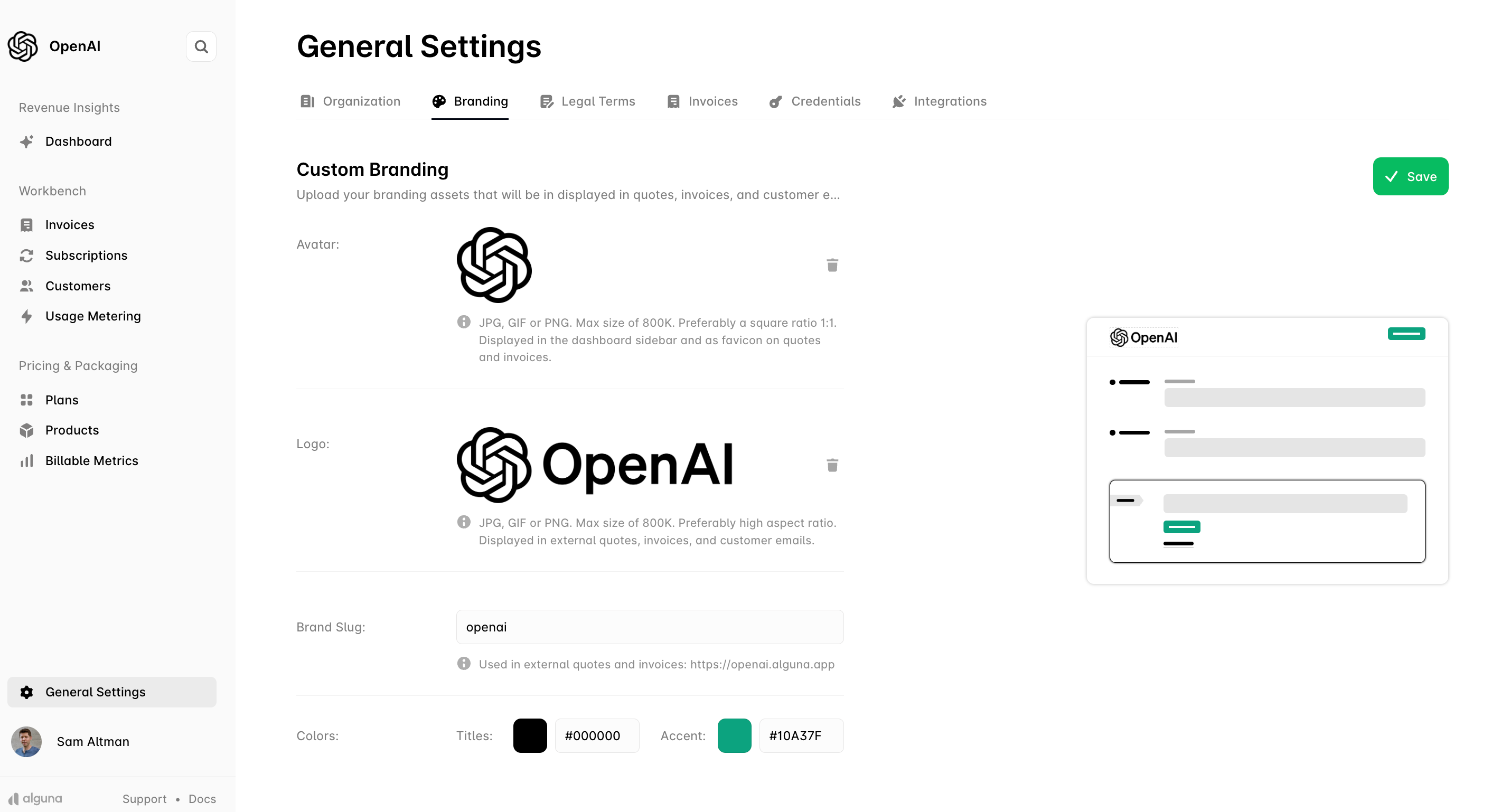
In the **General Settings** section, you can upload branding assets that will be used across quotes, invoices, and customer emails. Follow the steps below to set up your custom branding:
### Avatar
* **Purpose**: The avatar is displayed in the dashboard sidebar and used as a favicon in quotes and invoices.
* **Supported file formats**: JPG, GIF, or PNG.
* **Maximum file size**: 800 KB.
* **Recommended dimensions**: A square ratio (1:1) for optimal display.
### Logo
* **Purpose**: The logo will be shown on external quotes, invoices, and customer emails.
* **Supported file formats**: JPG, GIF, or PNG.
* **Maximum file size**: 800 KB.
* **Recommended dimensions**: Preferably a high aspect ratio for the best presentation.
### Brand Slug
* **Usage**: The brand slug is used in external quotes and invoices. It is a unique identifier added to your public-facing URLs.
* **Example**: `openai` will appear as `https://openai.alguna.app`.
### Colors
* **Titles Color**: Customize the color of your titles using hex codes.
* Example: `#000000` for black.
* **Accent Color**: Set the accent color for highlighting elements in customer-facing documents.
* Example: `#10A37F` for a green accent.
Once you have uploaded and customized the avatar, logo, and color scheme, click **Save** to store your changes.