> ## Documentation Index
> Fetch the complete documentation index at: https://alguna.com/docs/llms.txt
> Use this file to discover all available pages before exploring further.
# Customer Tax Rates
> Configure customer-specific tax settings and tax exemptions
# Customer Tax Rates
Alguna supports flexible tax configuration at the customer level. Set up tax IDs, apply exemptions, and configure tax-inclusive pricing.
***
## Overview
Customer tax settings determine how taxes are calculated and displayed on invoices. Each customer can have:
* **Tax ID/VAT number** for B2B transactions
* **Tax exemption status** for qualifying customers
* **Tax-inclusive pricing** preferences
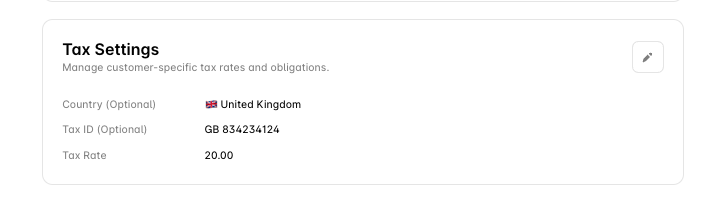 ***
## Tax Settings
| Field | Description | Example |
| ----------------- | --------------------------- | ---------------- |
| **Country** | Customer's tax jurisdiction | `US`, `DE`, `GB` |
| **Tax ID** | VAT number or Tax ID | `DE123456789` |
| **Tax Exempt** | Exemption status | `true/false` |
| **Tax Inclusive** | Prices include tax | `true/false` |
***
## Configure Tax Settings
### Set Customer Tax ID
1. Navigate to **Customers → \[Customer Name] → Settings**
2. Scroll to **Tax Settings**
3. Enter the customer's Tax ID/VAT number
4. Select the applicable country
5. Click **Save**
### Mark as Tax Exempt
1. Navigate to customer's Tax Settings
2. Enable **Tax Exempt** toggle
3. Select exemption reason:
* Government entity
* Non-profit organization
* Reseller certificate
* Other (specify)
4. Upload exemption certificate if required
5. Click **Save**
### Set Tax-Inclusive Pricing
1. Navigate to customer's Tax Settings
2. Enable **Tax Inclusive** toggle
3. Click **Save**
When enabled, prices shown to this customer will include tax.
***
## Tax ID Types
Alguna supports various tax ID formats:
| Type | Region | Format | Example |
| ------ | -------------- | --------------------- | ----------------- |
| EU VAT | European Union | Country code + number | `DE123456789` |
| UK VAT | United Kingdom | `GB` + 9 or 12 digits | `GB123456789` |
| US EIN | United States | 9 digits with hyphen | `12-3456789` |
| AU ABN | Australia | 11 digits | `12345678901` |
| CA GST | Canada | 9 digits + RT0001 | `123456789RT0001` |
| IN GST | India | 15 alphanumeric | `27AAPFU0939F1ZV` |
***
## Tax Exemptions
### Exemption Reasons
| Reason | Description |
| -------------- | ---------------------------------- |
| Government | Government entity |
| Non-profit | Non-profit organization |
| Reseller | Reseller with certificate |
| Export | Export to non-taxable jurisdiction |
| Reverse Charge | B2B reverse charge applies |
| Other | Custom exemption reason |
### Managing Certificates
1. Navigate to customer's Tax Settings
2. Click **Upload Certificate**
3. Upload the exemption certificate file
4. Set expiration date if applicable
5. Click **Save**
Track certificate expiration dates and request renewals proactively to avoid tax being charged unexpectedly.
***
## EU VAT Handling
### Reverse Charge Mechanism
For B2B sales within the EU, Alguna automatically applies reverse charge when:
* Seller and buyer are in different EU countries
* Buyer has a valid VAT ID
The invoice will show zero tax with a note: "Reverse charge: Customer to account for VAT"
***
## Invoice Display
**Tax Exclusive (default):**
```
Subtotal: $100.00
Tax (10%): $10.00
Total: $110.00
```
**Tax Inclusive:**
```
Subtotal (incl. tax): $110.00
Tax included: $10.00
Total: $110.00
```
***
## Best Practices
Always validate tax IDs before applying exemptions or reverse charge.
Monitor certificate expiration dates and request renewals proactively.
Store exemption certificates and maintain an audit trail.
Verify tax calculations with test invoices before going live.
***
## Troubleshooting
### Tax Not Calculating
1. Verify customer has a billing address with country
2. Check tax provider is configured
3. Ensure product is taxable (not marked as exempt)
### Wrong Tax Rate
1. Review customer's tax settings
2. Check for customer-level rate overrides
3. Verify product tax category
### Reverse Charge Not Applying
1. Confirm both parties have valid EU VAT IDs
2. Verify seller and buyer are in different EU countries
3. Check VAT ID validation succeeded
***
## Next Steps
Manage customer contacts.
Learn about customer accounts.
***
## Tax Settings
| Field | Description | Example |
| ----------------- | --------------------------- | ---------------- |
| **Country** | Customer's tax jurisdiction | `US`, `DE`, `GB` |
| **Tax ID** | VAT number or Tax ID | `DE123456789` |
| **Tax Exempt** | Exemption status | `true/false` |
| **Tax Inclusive** | Prices include tax | `true/false` |
***
## Configure Tax Settings
### Set Customer Tax ID
1. Navigate to **Customers → \[Customer Name] → Settings**
2. Scroll to **Tax Settings**
3. Enter the customer's Tax ID/VAT number
4. Select the applicable country
5. Click **Save**
### Mark as Tax Exempt
1. Navigate to customer's Tax Settings
2. Enable **Tax Exempt** toggle
3. Select exemption reason:
* Government entity
* Non-profit organization
* Reseller certificate
* Other (specify)
4. Upload exemption certificate if required
5. Click **Save**
### Set Tax-Inclusive Pricing
1. Navigate to customer's Tax Settings
2. Enable **Tax Inclusive** toggle
3. Click **Save**
When enabled, prices shown to this customer will include tax.
***
## Tax ID Types
Alguna supports various tax ID formats:
| Type | Region | Format | Example |
| ------ | -------------- | --------------------- | ----------------- |
| EU VAT | European Union | Country code + number | `DE123456789` |
| UK VAT | United Kingdom | `GB` + 9 or 12 digits | `GB123456789` |
| US EIN | United States | 9 digits with hyphen | `12-3456789` |
| AU ABN | Australia | 11 digits | `12345678901` |
| CA GST | Canada | 9 digits + RT0001 | `123456789RT0001` |
| IN GST | India | 15 alphanumeric | `27AAPFU0939F1ZV` |
***
## Tax Exemptions
### Exemption Reasons
| Reason | Description |
| -------------- | ---------------------------------- |
| Government | Government entity |
| Non-profit | Non-profit organization |
| Reseller | Reseller with certificate |
| Export | Export to non-taxable jurisdiction |
| Reverse Charge | B2B reverse charge applies |
| Other | Custom exemption reason |
### Managing Certificates
1. Navigate to customer's Tax Settings
2. Click **Upload Certificate**
3. Upload the exemption certificate file
4. Set expiration date if applicable
5. Click **Save**
Track certificate expiration dates and request renewals proactively to avoid tax being charged unexpectedly.
***
## EU VAT Handling
### Reverse Charge Mechanism
For B2B sales within the EU, Alguna automatically applies reverse charge when:
* Seller and buyer are in different EU countries
* Buyer has a valid VAT ID
The invoice will show zero tax with a note: "Reverse charge: Customer to account for VAT"
***
## Invoice Display
**Tax Exclusive (default):**
```
Subtotal: $100.00
Tax (10%): $10.00
Total: $110.00
```
**Tax Inclusive:**
```
Subtotal (incl. tax): $110.00
Tax included: $10.00
Total: $110.00
```
***
## Best Practices
Always validate tax IDs before applying exemptions or reverse charge.
Monitor certificate expiration dates and request renewals proactively.
Store exemption certificates and maintain an audit trail.
Verify tax calculations with test invoices before going live.
***
## Troubleshooting
### Tax Not Calculating
1. Verify customer has a billing address with country
2. Check tax provider is configured
3. Ensure product is taxable (not marked as exempt)
### Wrong Tax Rate
1. Review customer's tax settings
2. Check for customer-level rate overrides
3. Verify product tax category
### Reverse Charge Not Applying
1. Confirm both parties have valid EU VAT IDs
2. Verify seller and buyer are in different EU countries
3. Check VAT ID validation succeeded
***
## Next Steps
Manage customer contacts.
Learn about customer accounts.