> ## Documentation Index
> Fetch the complete documentation index at: https://alguna.com/docs/llms.txt
> Use this file to discover all available pages before exploring further.
# Customer Contacts
> Manage multiple contacts per customer with role-based notifications
[Production](https://app.alguna.io/accounts) or [Sandbox](https://app.sandbox.alguna.io/accounts)
# Customer Contacts
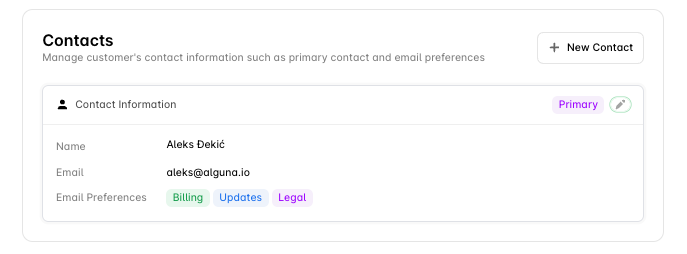
Alguna supports multiple contacts per customer, each with specific roles determining which communications they receive. Configure billing contacts, legal signatories, and update recipients to ensure the right people get the right information.
***
## Overview
Each customer can have multiple contacts with different roles:
| Role | Receives |
| ----------- | ------------------------------------------ |
| **Billing** | Invoices, receipts, payment reminders |
| **Legal** | Quote signatures, contract renewals, terms |
| **Updates** | Product updates, service notifications |
| **Admin** | All communications |
 ***
## Managing Contacts
### Add a New Contact
1. Navigate to **Customers → \[Customer Name] → Contacts**
2. Click **+ New Contact**
3. Enter contact details:
* First name and last name
* Email address
* Phone number (optional)
* Job title (optional)
4. Select email preferences (roles)
5. Click **Save**
### Edit Existing Contact
1. Click on the contact in the list
2. Update details or email preferences
3. Click **Save**
### Remove Contact
1. Click the three-dot menu on the contact
2. Select **Delete Contact**
3. Confirm deletion
### Set Primary Contact
1. Click on the contact
2. Toggle **Primary Contact** on
3. Click **Save**
The primary contact is used as the default for communications when no specific role is required.
***
## Contact Roles
### Billing Role
Receives all billing-related communications:
* Invoice notifications
* Payment receipts
* Payment failure alerts
* Payment method expiration warnings
* Credit notes and refunds
### Legal Role
Receives legal and contract communications:
* Quote signature requests
* Contract renewal notifications
* Terms and conditions updates
* Amendment approvals
### Updates Role
Receives general updates:
* Product announcements
* Service notifications
* Maintenance windows
* Feature updates
### Admin Role
Receives all communications (combination of all roles). Use this for small businesses where one person handles everything.
***
## Contact Fields
| Field | Required | Description |
| ---------- | -------- | -------------------- |
| First Name | Yes | First name |
| Last Name | Yes | Last name |
| Email | Yes | Email address |
| Phone | No | Phone number |
| Job Title | No | Job title |
| Roles | Yes | Communication roles |
| Primary | No | Primary contact flag |
***
## Common Scenarios
### Enterprise Customer
Large companies typically need:
* **Primary billing contact**: Director of Finance or AP lead
* **Backup billing contact**: Accounts Payable department email
* **Legal contact**: General Counsel for contract signing
* **Technical contact**: CTO or IT lead for service updates
### Small Business
Single owner/operator:
* One contact with **Admin** role receives all communications
***
## Best Practices
Add backup billing contacts for payment continuity.
Ensure quotes reach decision-makers with signing authority.
Verify email addresses to ensure delivery.
Update contacts when employees change roles or leave.
***
## Troubleshooting
### Emails Not Reaching Contact
1. Verify email address is correct
2. Check contact has appropriate role
3. Review delivery logs for bounces
4. Check spam filters and email settings
### Missing Role Communications
1. Confirm contact has the required role assigned
2. Check if contact is unsubscribed
3. Verify email preferences settings
***
## Next Steps
Learn about customer accounts.
Configure tax settings.
***
## Managing Contacts
### Add a New Contact
1. Navigate to **Customers → \[Customer Name] → Contacts**
2. Click **+ New Contact**
3. Enter contact details:
* First name and last name
* Email address
* Phone number (optional)
* Job title (optional)
4. Select email preferences (roles)
5. Click **Save**
### Edit Existing Contact
1. Click on the contact in the list
2. Update details or email preferences
3. Click **Save**
### Remove Contact
1. Click the three-dot menu on the contact
2. Select **Delete Contact**
3. Confirm deletion
### Set Primary Contact
1. Click on the contact
2. Toggle **Primary Contact** on
3. Click **Save**
The primary contact is used as the default for communications when no specific role is required.
***
## Contact Roles
### Billing Role
Receives all billing-related communications:
* Invoice notifications
* Payment receipts
* Payment failure alerts
* Payment method expiration warnings
* Credit notes and refunds
### Legal Role
Receives legal and contract communications:
* Quote signature requests
* Contract renewal notifications
* Terms and conditions updates
* Amendment approvals
### Updates Role
Receives general updates:
* Product announcements
* Service notifications
* Maintenance windows
* Feature updates
### Admin Role
Receives all communications (combination of all roles). Use this for small businesses where one person handles everything.
***
## Contact Fields
| Field | Required | Description |
| ---------- | -------- | -------------------- |
| First Name | Yes | First name |
| Last Name | Yes | Last name |
| Email | Yes | Email address |
| Phone | No | Phone number |
| Job Title | No | Job title |
| Roles | Yes | Communication roles |
| Primary | No | Primary contact flag |
***
## Common Scenarios
### Enterprise Customer
Large companies typically need:
* **Primary billing contact**: Director of Finance or AP lead
* **Backup billing contact**: Accounts Payable department email
* **Legal contact**: General Counsel for contract signing
* **Technical contact**: CTO or IT lead for service updates
### Small Business
Single owner/operator:
* One contact with **Admin** role receives all communications
***
## Best Practices
Add backup billing contacts for payment continuity.
Ensure quotes reach decision-makers with signing authority.
Verify email addresses to ensure delivery.
Update contacts when employees change roles or leave.
***
## Troubleshooting
### Emails Not Reaching Contact
1. Verify email address is correct
2. Check contact has appropriate role
3. Review delivery logs for bounces
4. Check spam filters and email settings
### Missing Role Communications
1. Confirm contact has the required role assigned
2. Check if contact is unsubscribed
3. Verify email preferences settings
***
## Next Steps
Learn about customer accounts.
Configure tax settings.